 Help
Help Support Us
 Changelogs
 Glossary
 Trade (temp.)
 Hero editor
 Trackers
 Ladder
 Lobbies
How to play?
Step-by-step guide to install and connect to the server
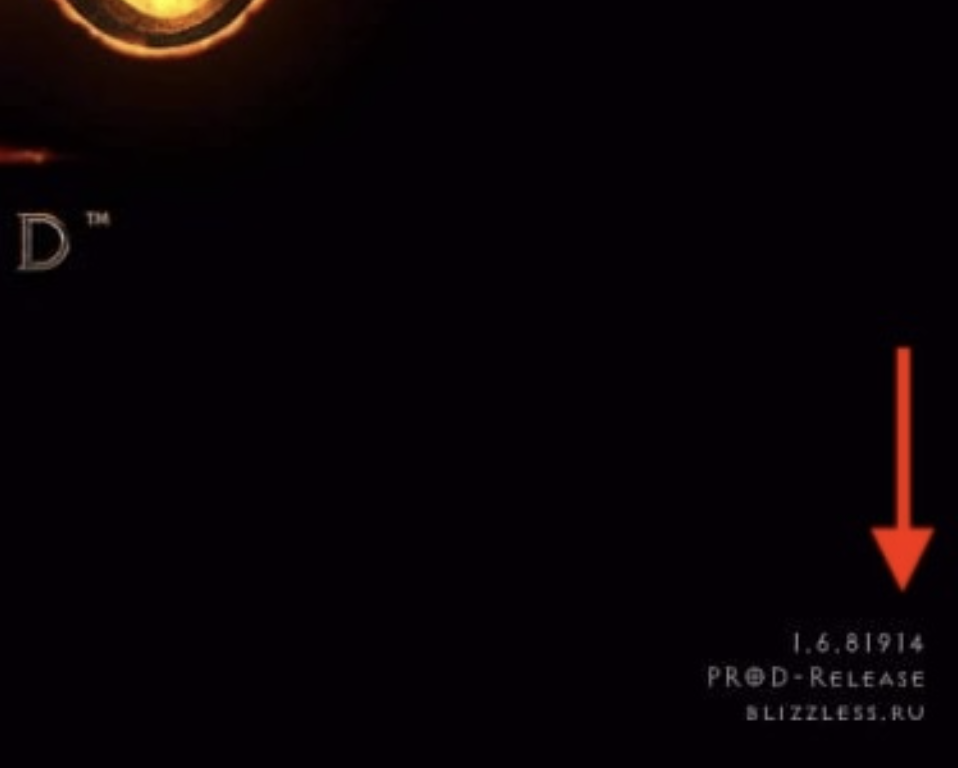
Check game version and download if different
To play on our server you'll first need to buy the game via Battle.net or Steam. You must also log into the game on the official server and join the actual lobby (any of them) at least once before proceeding with the steps below!
Note that players who own the Reign of the Warlock DLC play in the same realm as those who don't. So if you haven't bought the DLC, only creating a Warlock character will be unavailable to you — all other content (resource tabs, loot filters, etc.) stays available.
If your version is different, you'll need to update the game client through Battle.net.
Download game launcher
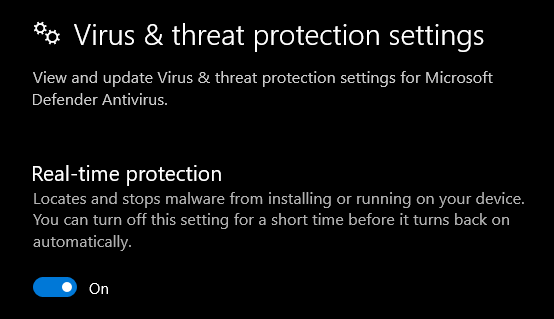
First of all, before downloading the launcher you'll need to temporarily disable your antivirus and Windows protection.
To do this:
Press Start and type 'Settings' (don't confuse with Control Panel)
Select 'Update & Security'
Windows Security → Virus & threat protection → Manage settings → turn off 'Real-time protection'
Only after that, download the launcher via one of these links: blizzless.ru or mega.nz. Extract the archive to any folder — the game launches through it every time. You can make a desktop shortcut.
If you downloaded the launcher without disabling the antivirus, or it won't start — delete it and download again.
Add the launcher folder to exclusions (recommended)
After that you can turn real-time protection back on. Follow these steps:
Virus & threat protection → 'Manage settings'
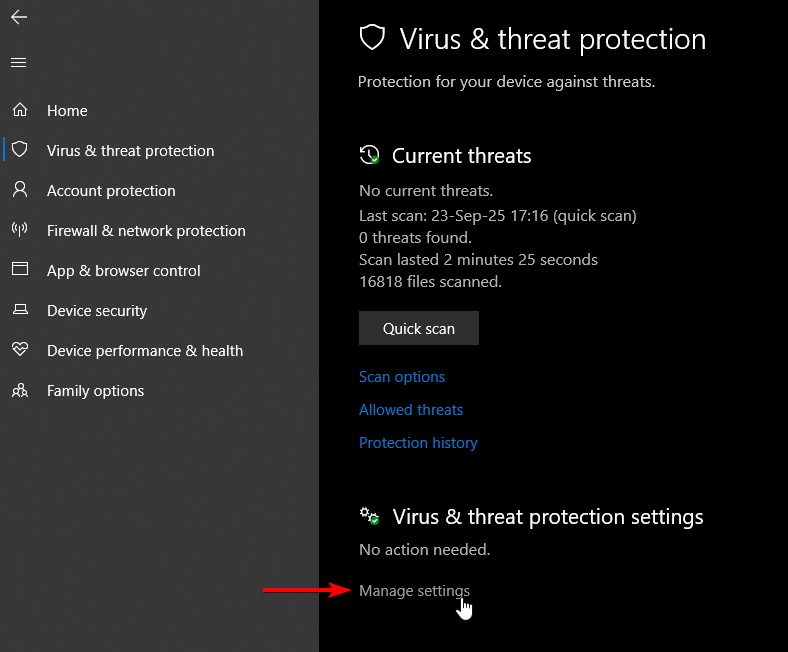
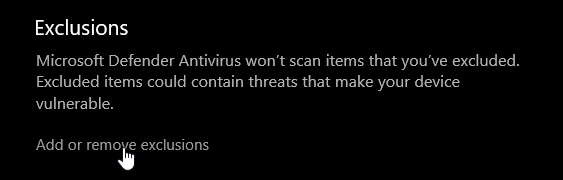
'Exclusions' → 'Add or remove exclusions' → 'Yes'
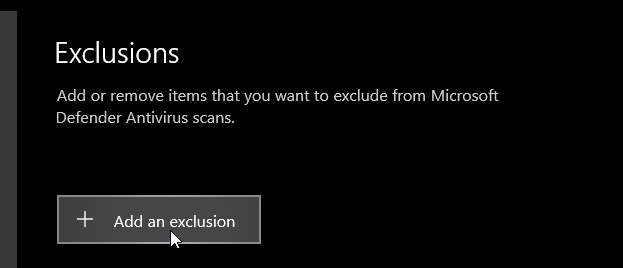
'Add an exclusion' → 'Folder' → select the launcher folder
After that you can safely turn real-time protection back on — the launcher is already excluded.
First game launch
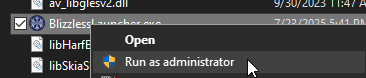
Right-click the launcher → 'Run as administrator'
Follow the launcher instructions and point it to the installed game. You can change this later in the settings.
Create a new account in the launcher or log in if already registered.
When registering, be sure to remember or write down your password! If you reinstall the system, recovery is very limited right now.
Press 'Launch' in the launcher — it downloads the required files and starts the game.
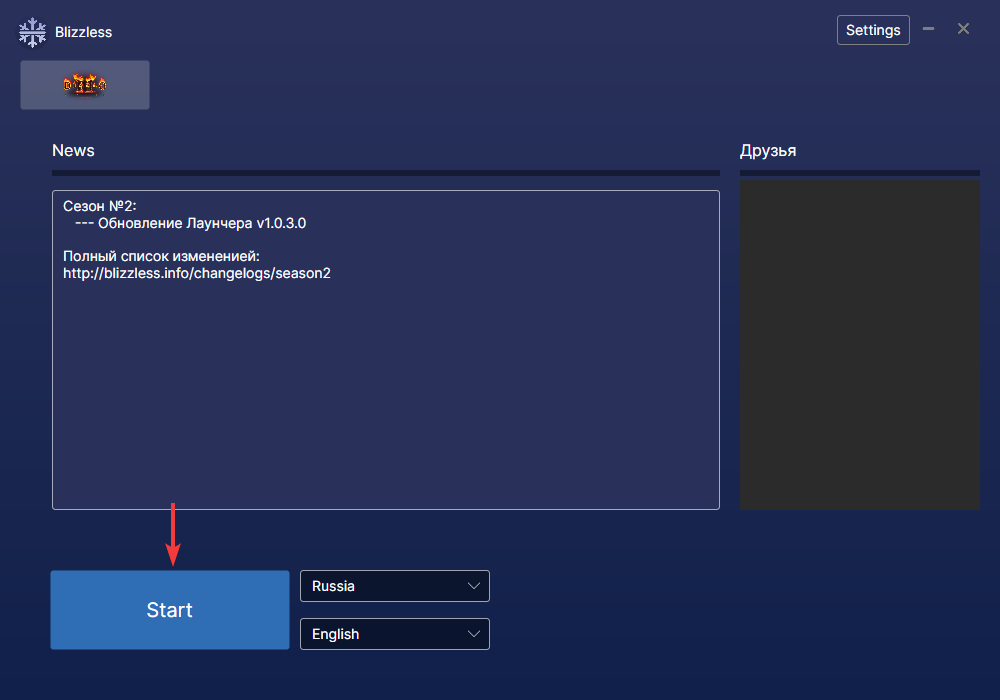
Next time you can run the launcher without administrator rights.
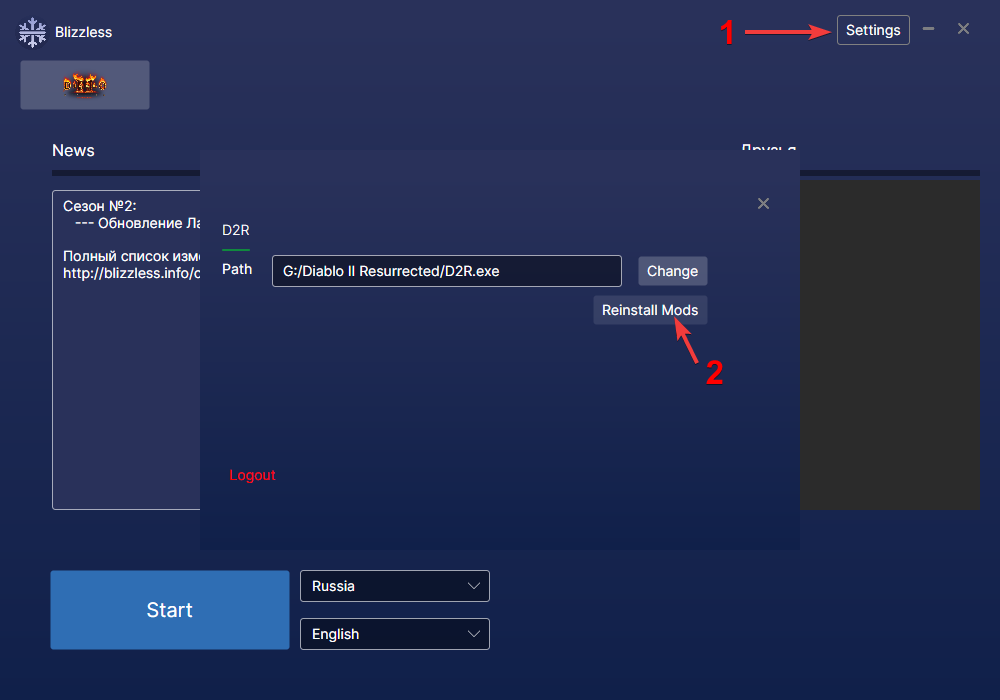
If you run into problems launching the game, try the 'Reinstall mods' button in the settings:
Encyclopedia and loot filters
We have our own in-game encyclopedia (special thanks to sku11man) — it shows changed items, recipes, breakpoints and more.
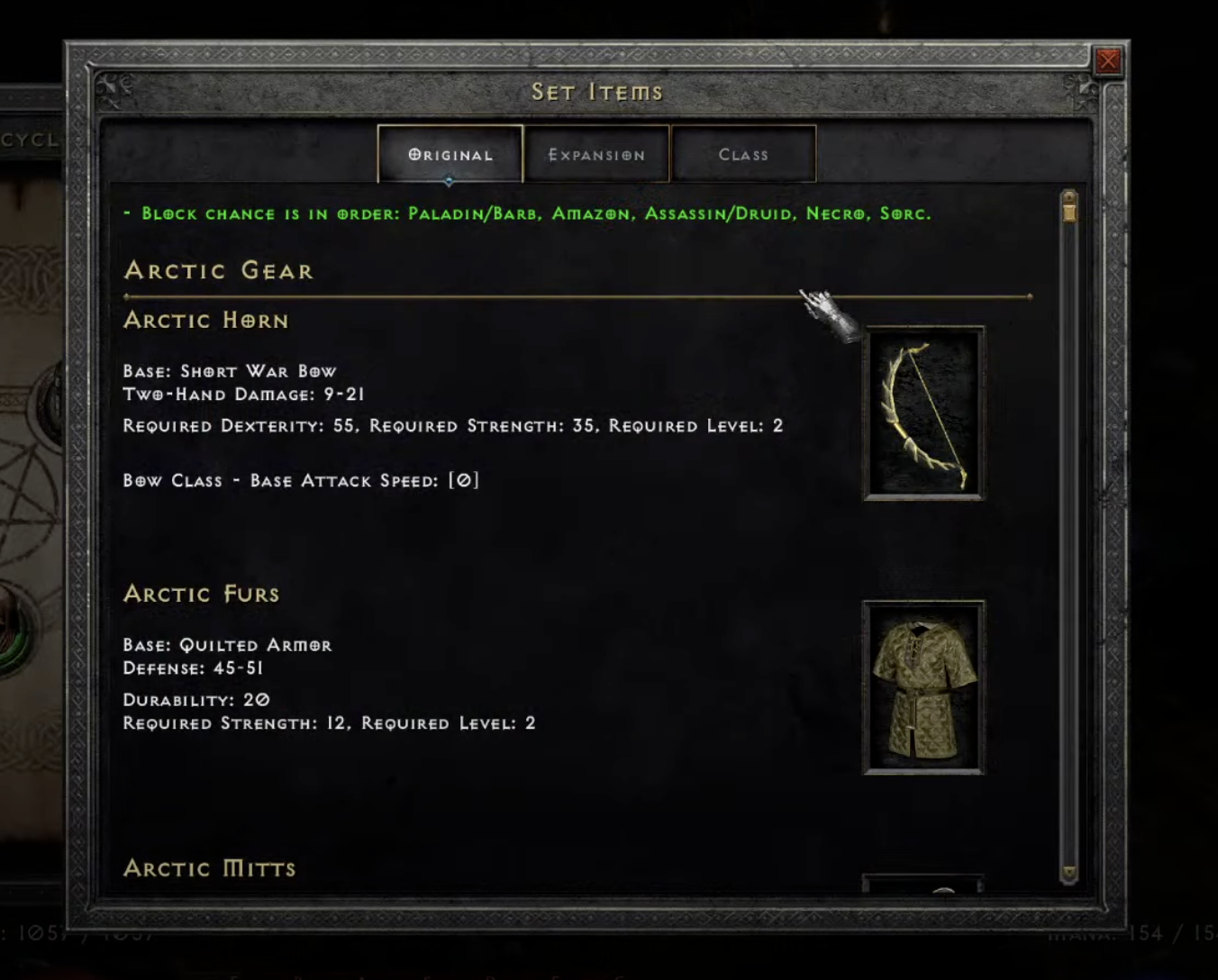
To get started, activate it. There are two options:
Use the tool made for our project — D2R Ultra Utility. There you can fine-tune the loot filter, disable intros, and manage the encyclopedia. Open the 'Game Settings' tab to enable the in-game encyclopedia and pick its language.


If the utility doesn't start or work, install the encyclopedia manually: download the archive and extract it into the game root (Diablo II Resurrected).
Archive link (Google Drive): Download (EN)
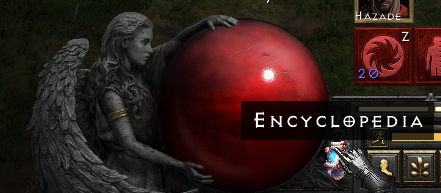
After activating (either way), open it in-game with the button at the bottom-left, to the right of the HP orb.
The encyclopedia is not compatible with the 'Large font mode' setting (Gameplay → Accessibility). Text will be barely visible.
Loot filters
You can also use loot filters in the utility. Select a profile (e.g. Blizzless) and click 'Apply'. Fine-tune everything in 'Edit Mode', and even create and share your own profile.

Don't like the built-in filters? Easily customize them in Edit Mode!

After applying any loot filter, you MUST restart the game.
Note: profiles and the utility update independently — if you see green update icons, don't ignore them (update and re-apply).